Showing posts with label audio. Show all posts

Thursday, 30 April 2015

Programs to increase PC volume

The best programs to increase the PC volume.

3RVX


When adjusting the volume on the notebook, it is very handy to have an indicator on the screen that shows the percentage of tidal volume (as it works on Mac). 3RVX is a free compact and simple to use application that allows you to raise and lower the volume of the PC viewing audio status via an indicator on the screen. The indicator can be customized by numerous skin, as well as the combination of keys on the keyboard can be used to raise and lower the volume. It runs on all major versions of Windows. Download from here.


Sound Volume Hotkeys


As its name suggests quite easily, Sound Volume Hotkeys is a free program that allows you to adjust the volume of your PC using combinations of keys on the keyboard. These combinations are linked to a system of indicators on the screen that allows you to graphically display the status of the audio every time you increase or decrease the volume of the computer. The indicator is highly customizable in appearance and function. The program is compatible with all major versions of Windows, from Windows XP to Windows 8. Download here.


Sound Lock
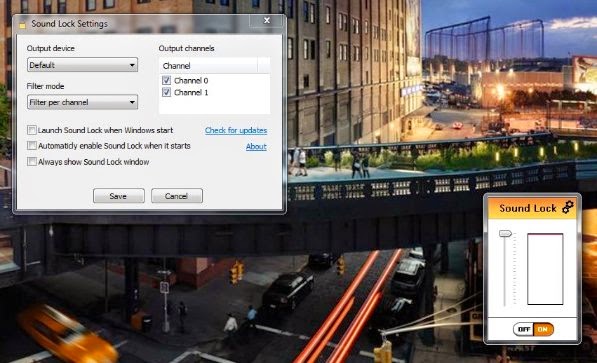


Sound Lock is not a real program to increase the volume of the PC, but a program to increase the volume of PC without disturbing others. Using it, in fact, it is possible to prevent the volume peaks which occasionally occur during movies (but not only) with a normalization of the audio that occurs in real time and avoids the volume to exceed certain thresholds. It works with all the programs and does not require any special configuration. It supports adjusting audio up to fourteen channels and is compatible with all versions of Windows (including Windows 8). Download from here.


Volumouse


The volume of the computer you can easily increase or decrease with the buttons of multimedia control above the keyboard, but in reality it would be more natural it can be adjusted with the mouse wheel. Here comes a game Volumouse, a small free program that allows you to do just that, that is, adjust the volume of your PC using the mouse wheel (which are associated with the action keys on the keyboard, or the volume control would coincide with the scrolling of pages ). The software is highly customizable and works without the need for installation. Download from here.


Realtek HD control panel 


On computers equipped with sound cards Realtek, you can use the control panel for Realtek HD tuned for advanced volume settings of the PC. Among these there is one called equalizer which, if set properly, allows you to increase significantly the volume level of the computer on those notebooks that by default have the volume low. For maximum volume, you have to activate the equalizer and bring all its indicators upwards. The effects of these changes apply globally to the system, regardless of the program used to view movies, listen to music, etc.. Download from here.


Windows Media Player


Windows Media Player is an extremely versatile and feature-rich, to the point that many users do not know the full range of ability. For example, many people do not know that using advanced controls for audio of this software pre-installed in Windows, you can greatly increase the volume of video and music played in real time. To enable this feature, simply open the graphic equalizer from the right click menu and bring all its indicators upwards. Download from here.


Original post: Salvatore Aranzulla


Tuesday, 28 April 2015

How to increase PC volume

Have you just bought your first computer and you decided to give listening to your favorite music or watching a good movie... but just do not know how to increase PC volume? Well, if yes do not panic.

If you are a novice to the world of computers it is usual not know where to put your hands to perform even those who in the eyes of the most experienced of the operations may seem very trivial. Precisely for this reason you must not be discouraged. Increasing volume PC may indeed seem complicated but in fact it is a task really simple to make and for the execution of which does not need to be an "geeks".

Then take a few minutes of free time and dedicated to the reading of the following lines to find out, depending on the version of Windows that is installed on your computer, what steps you need to increase volume PC.


If you were using a PC running Windows XP and want to increase volume all you have to do is to click on the speaker icon in the notification gray namely that part of the task bar located at the at the bottom right of the screen and which it is positioned next to the clock.

Once this is done you will see a progress bar control. Then click with the left mouse button on the indicator attached to the control rod and continuing to hold down the left button brings the indicator up to the highest point of the bar. Done! You have increased the volume of the PC.

If you use Windows XP instead of Windows Vista or 7 you can increase volume PC in a more or less similar to the procedure described above.

To increase volume PC with Windows Vista or 7 you can just click on the speaker icon that white is placed on the taskbar next to the clock, select with the left mouse button the indicator that is located in the volume bar that appears and drag the slider up to the highest point of the bar by continuing to hold down the left mouse button.


If your PC is running Windows 8 or Windows 8.1, you can increase the volume from the Start Screen acting is either from the desktop.

To increase the volume of the PC from the Start Screen is simply click on the magnifying glass placed in the upper right corner, type "volume" (without quotation marks) in the text field that appears, and select from the results proposed Change the system volume . Now proceed by bringing the mouse cursor speaker icon, click on the indicator with the right mouse button and then drag it upward.

If you want to increase the volume of the PC acting from the desktop of Windows 8 or Windows 8.1 instead you just follow the same procedure that I indicated to Windows Vista and Windows 7. To increase the volume of the PC on Windows 8 and Windows 8.1 from the desktop you must click on the speaker icon that is placed white on the taskbar next to the clock, select with the left mouse button the indicator that is located in the volume bar that appears and drag the slider to the point higher the bar by continuing to hold down the left mouse button.

To verify that everything went the right way and you've actually increased the volume dl PC tries to start playback of any audio file using your favorite media player. If your computer seems to make it sounds clear and high then it is obvious that you succeeded.

Consider also the fact that with the latest versions of Windows in addition to increasing the overall volume of the PC you can adjust the sound for individual programs. For example you can increase the volume only for Internet Explorer or Windows Media Player only. To increase the volume of individual programs running you click the entry Mixer attached to the volume bar and adjust the volume level of the various programs by dragging the indicator available for everyone.


Please note that in order to increase volume PC you can resort to the use of special programs through which you can raise in an alternative to the solutions proposed the sound level of the computer such as pressing specific buttons on the keyboard or by simply moving the mouse wheel . To find out what these programs you should take a look at my article about plans to increase the volume of the PC.

Original post: Salvatore Aranzulla